 Franco Food
Who this is for
Any shop, restaurant, supermarket, bakery, pharmacy or other business that wants to sell on Franco Food in Trinidad, Antigua or Dominica.
Before you start
- A Franco Food customer account (see the customer guide).
- A verified email AND a verified phone number — the app checks both before it shows the business form.
- The manager’s full name, phone, driver’s license number and license expiry date.
- Your business name, category, type, and what types of products you plan to sell.
- Your city, address, business phone and email — and, if you have them, products to submit for review.
Steps
Create your customer account first
Business registration starts from your Franco Food account. If you do not have one yet, follow the customer guide first.
Verify your email and phone
The app verifies both before the form appears. Complete any verification it asks for, then come back to the business form.
Go to Profile and tap Register business
In Profile, tap Register business.
The screenshot below is the real home screen, where the Profile tab is at the bottom right. There is no capture of the registration form itself in the screenshot set.
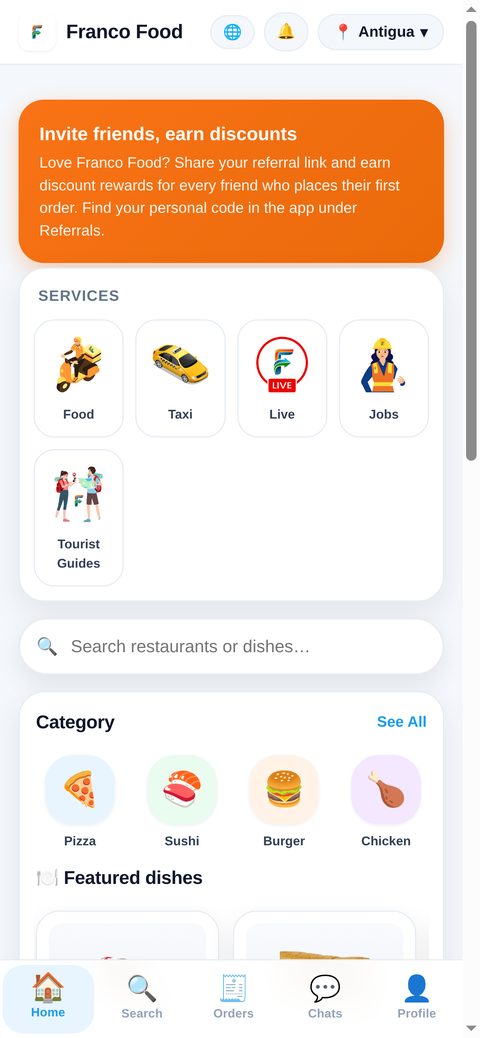
Real app screenshot: the home screen. The Profile tab is at the bottom right. Fill in the manager’s details
Enter the manager’s full name, phone, driver’s license number and license expiry date, plus a date of birth (locked if already saved). All of these are required.
Fill in the business details
Enter the business name (required), a description (optional), the category and type of business (both required), and what types of products you plan to sell (required, e.g. burgers, pizzas, local food).
Add the location
Pick your city (Trinidad, Antigua or Dominica) and enter the address, phone and email of the business. All four are required.
Add image and hours (optional)
Upload a logo photo or paste a logo image URL, and write your hours (for example, Mon–Fri 9am–6pm). Both are optional.
Add products for review
Tap + Add product for each product you want to sell. Each product needs a name and a price; the description is optional. Products you submit are reviewed together with your application — an empty row is simply skipped.
Accept the terms and submit
Tick I accept the Terms and conditions and the Privacy policy and tap Submit request. Every required field must be filled, or the form shows “Please fill all required fields.”
What happens next
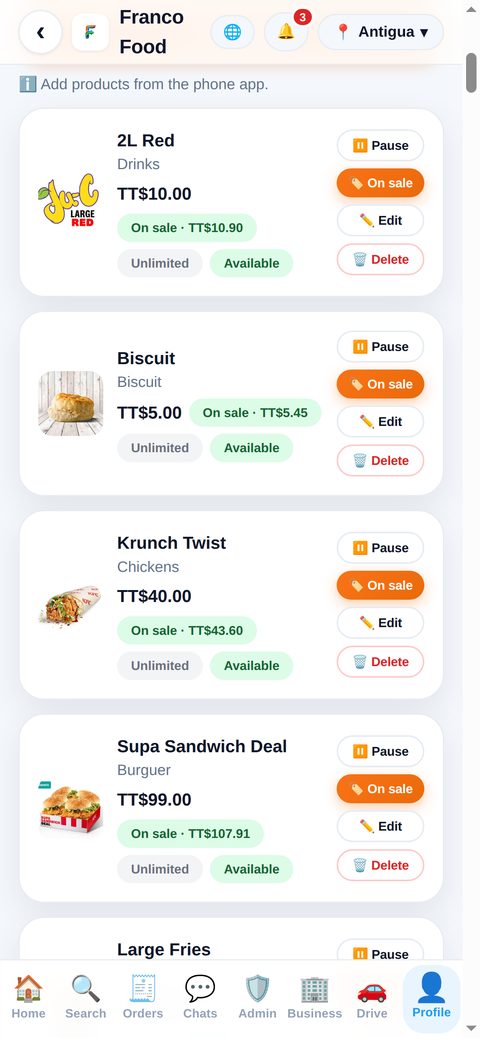
Your business is pending approval: the app shows “Request sent. We will notify you when your business is approved.” The team reviews your application, the manager’s license and your products, and notifies you when your business is approved. Then you will receive orders and manage your business from the panel — the product list below is what that panel looks like.
Common problems
- “Please fill all required fields.” Check the manager’s name, phone, license and license expiry; the business name, category, type and product types; and the city, address, phone and email.
- A product row blocks the form? Every product you started needs a name and a price above zero — delete any row you did not mean to add.
- The form never appears? Check that your email and phone are verified first; the app sends you to verification otherwise.
- Already a business owner? The app shows your business state (pending or open) and your products under review, instead of the form.